Inside Git: The Role of .git folder
Git is a version control system that most of us use daily, but honestly, not many people really understand what's happening behind the scenes. When we change a file and commit it, what actually happens? How does Git keep track of everything? Lets get into the other side of git and actually get a idea of how Git actually works.
The Git Object Model:
Blobs: Containers for our files. Each version of a file is stored as a blob with a unique ID (using SHA-1 hash). If a file doesn't change between commits, Git reuses the same blob instead of creating a new one.
Trees: Represent folders graphically. They point to blobs (files) and other trees (subfolders), mirroring your project's folder structure.
Commits: Snapshots of the project at a specific moment. Each commit points to a tree (showing the project's state) and includes information like who made the commit, when, the commit message, and previous commits.
What's Inside the .git Folder?
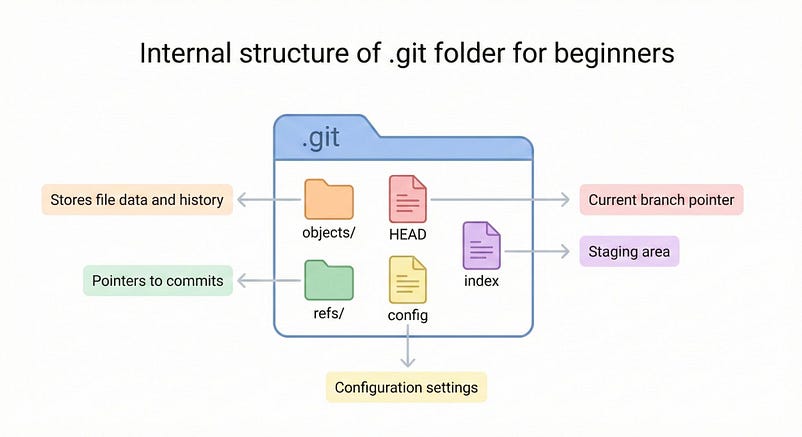
When we run git init command, Git creates a hidden .git folder in our project folder. This folder contains everything Git needs:
Objects (.git/objects) - This is where Git stores all the blobs, trees, and commits as compressed files. Every time we commit something, new objects get added here.
Refs (.git/refs) - This folder keeps track of the branches and tags. They're basically pointers that tell Git which commit each branch is pointing to.
HEAD - This file keeps track of which branch we are currently on. When we switch branches, Git just updates this file.
Index (Staging Area) - This is a temporary area where Git tracks the changes that we are about to commit. When perform git add, we are moving the changes here.
Logs (.git/logs) - Git maintains logs of all changes to branches and tags. This helps us track what happened and recover from mistakes.
The Staging Area
Before we commit anything, the changes sit in the staging area (index). When we modify a file, it stays in the working directory until we run git add. Only after that does Git know to include those changes in the next commit. This gives us the control over exactly what goes into each commit.
How Git Tracks History?
Git organizes the project history using a Directed Acyclic Graph (DAG). Basically, each commit points back to its parent commit(s), creating a chain of snapshots. When we merge the branches, a commit can have multiple parents. This structure lets Git store only the differences between commits instead of copying entire files every time. This is why Git is able to handle large projects so well.
Working with Branches
Branches in Git are just pointers to specific commits. When we create a new branch, Git creates a reference pointing to the current commit. This enables us to work on new features without messing up the main code. When we merge branches, Git uses special algorithms to figure out what changed and tries to combine everything automatically. If there are conflicts (when the same part of a file was changed differently in both branches), Git asks to fix them manually.
Rebasing Explained
Rebasing is a way to take the commits and replay them on top of another commit. It's useful for keeping a clean, linear history. But if we rebase commits that others are using, it can create confusion because we are essentially rewriting history. Merging is safer for shared branches.
How Git Optimizes Storage
As the repository grows, Git uses something called packfiles to save space. Instead of keeping every object as a separate file, Git compresses them and stores just the differences between versions. This happens when you run git gc (garbage collection), which cleans up and optimizes the repository.
The Reflog: The Safety Net
Git keeps a log called the reflog that tracks every change we make to branches and tags. This is super helpful if we accidentally delete a branch or reset to the wrong commit. We can use the reflog to go back to almost any previous state, even if it's not visible in the branch history anymore.
Common Git Operations
Here are the main things we usually do with Git:
Cloning - Make a copy of a remote repository on our computer.
Fetching - Download changes from a remote repository but don't merge them yet.
Pulling - Download changes and merge them into the current branch in one step.
Pushing - Send local commits to a remote repository.
Rebasing - Reapply the commits on the top of another branch to create a linear history.
